Manual import
Import files highsea didn't download or couldn't import on its own, or add films already sorted into a root folder.
Written for highsea 0.2.0-beta.3.
Import files by hand
Manual import, at the top of Activity, brings in files highsea didn't download, or a download it couldn't import on its own.
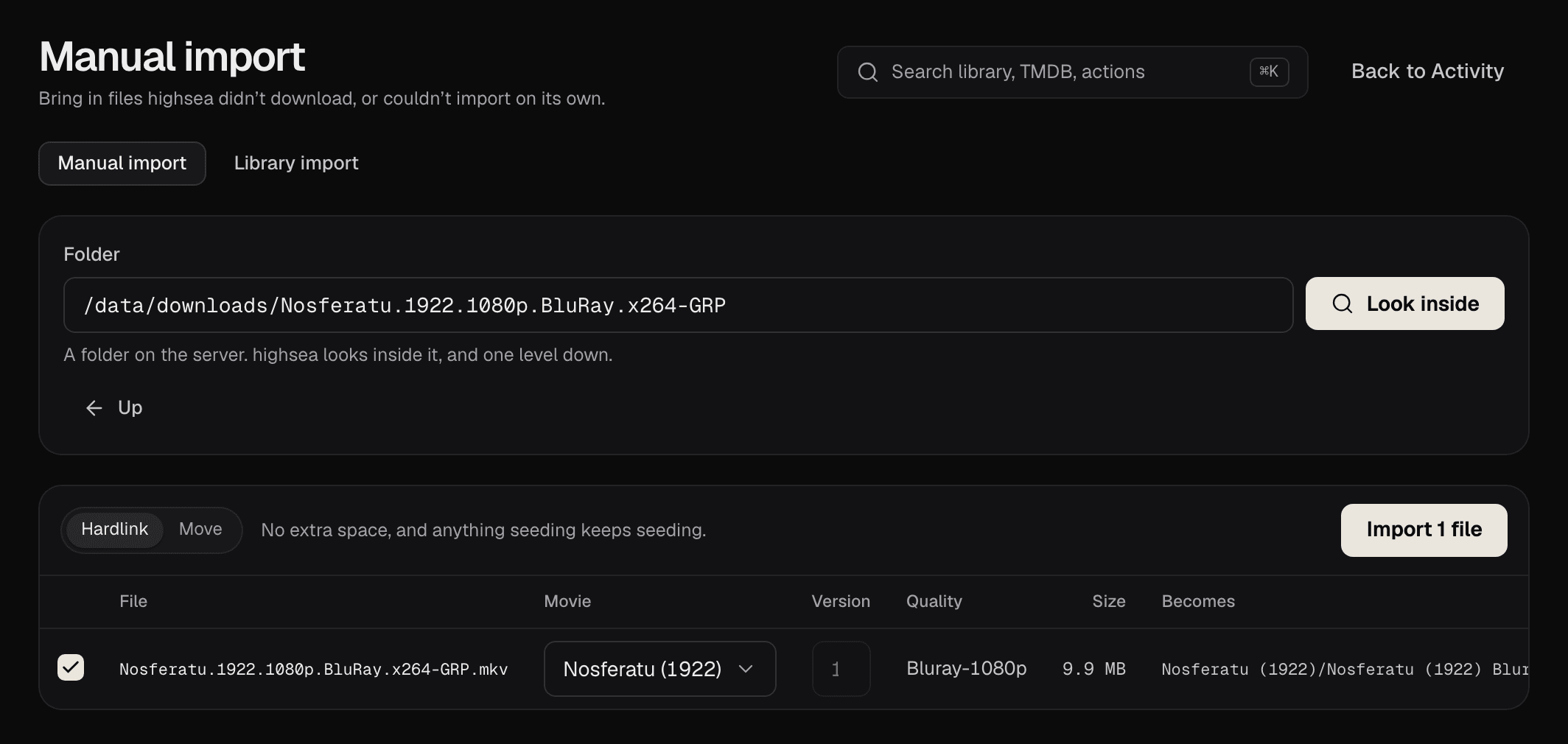
- In Folder, choose a folder on the server. highsea starts in the downloads folder; Folders here and Up move around. You can browse the root folders and the downloads folder.
- Select Look inside. highsea lists the video files in the folder and one level down.
- Check each row:
- Movie: the film each file matched. When a file Didn’t match a movie, choose one. Only films already in the library can be chosen; add the film first if it isn't.
- Version: for a film with more than one version, which one the file is. Two files can't go to the same version.
- Becomes: the name the file will get. After choosing a film by hand, select Look inside again to see it.
- Import: clear the box to leave a file out.
- Under How to bring them in, choose Hardlink (no extra space, and anything seeding keeps seeding) or Move (the files leave this folder). As with downloads, Hardlink copies when the folder is on another disk.
- Select Import. Each file comes back imported, or with the reason it couldn't be.
The Downloads page can open Manual import on a finished torrent's folder too, with Import into the library.
A library already on disk
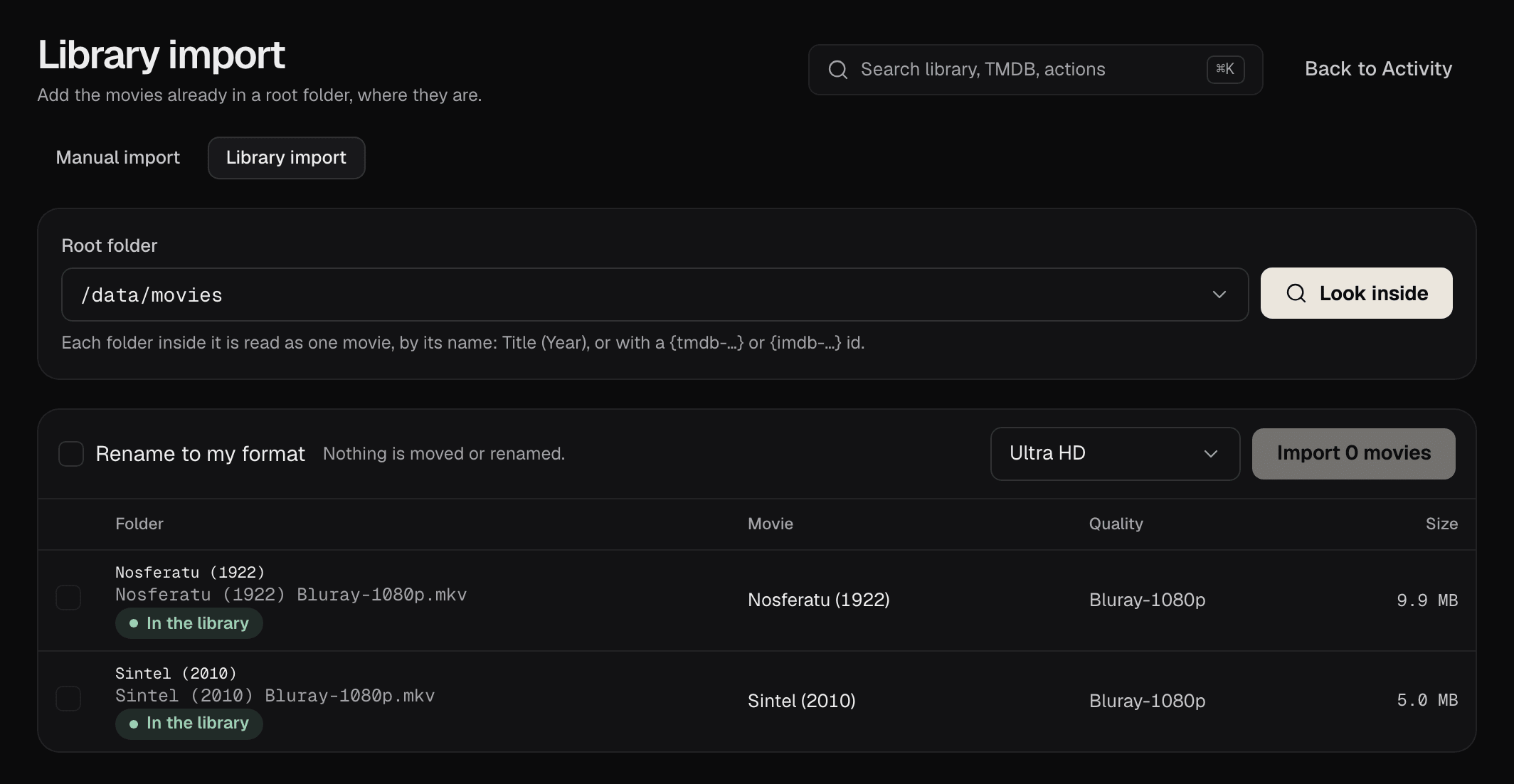
Manual import's other mode, Library import, adds films already sorted into a root folder, where they are. highsea adds the films it can match surely on its own when the folder is added or a new film appears in it (Root folders), so Library import is for the rest, or for importing them renamed. It reads each folder inside the root folder as one film, by its name, such as Title (Year), or with a TMDB or IMDb id in it. You choose a quality profile, and whether to Rename to my format or leave everything as it is. Matching uses TMDB, with highsea's key or yours, and the root folder must be added in Settings › Media management first.
If you're moving from Radarr, Migrating from Radarr and qBittorrent brings your library and settings across instead.