Restore and move
Restore a backup, restore one you kept somewhere else, and move highsea to another machine with a backup.
Written for highsea 0.1.0. Restoring is the Owner's alone, in System › Backups. A restore needs secret.key beside it: see the secret key.
Restore a backup
- In System › Backups, choose Restore beside the backup.
- Read what will happen, then choose Restore and restart.
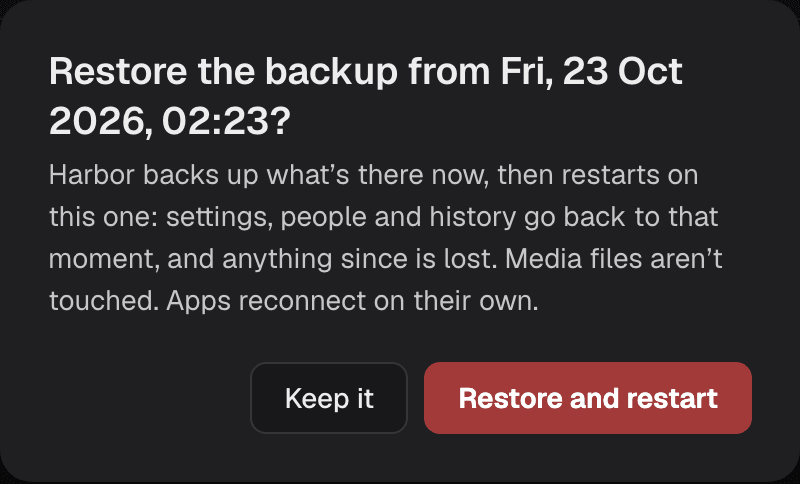
highsea first makes a Before a restore backup of what's there now, then restarts on the one you chose. Settings, people and history go back to that moment, and anything since is lost. Media files aren't touched, and apps reconnect on their own. The page reloads when the server is back, usually within a minute.
highsea checks each backup before it restores it:
- A backup made by a newer version of highsea is refused: update highsea first.
- A file that isn't a highsea backup, or can't be read, says so in the list and can't be restored.
- If the restored database doesn't start, highsea puts the previous one back and says why in System › Health.
The container needs a restart policy
To restart on the backup, highsea stops itself on purpose and relies on Docker to start it again. Every compose file and template in these guides sets restart: unless-stopped. Without a restart policy, start the container again yourself.
Restore a backup from somewhere else
System › Backups lists every highsea backup in the backups folder. To restore one you downloaded or copied away, put the zip back in that folder, keeping its file name, which begins with highsea-. It shows in the list, ready to restore.
Move to another machine
The simplest way is to copy the whole config folder, which carries secret.key with it. Upgrade walks through it.
To move with a backup instead:
- On the new machine, put your
secret.keyin the config folder before starting highsea there for the first time. highsea makes a new key when it finds none, and a new key can't open what the old one sealed. - Start highsea and go through setup, so you can sign in.
- Put the backup zip in the backups folder, then restore it from System › Backups. Your people, settings and history come back with it, including your old Owner account.
Keep the data folder at /data inside the container, so the library's paths still match.