Services
Each service's fields and where to find them, the webhook's message, browser notifications and the server's mail.
Written for highsea 0.1.0.
Every service takes a Name and the events it hears, then fields of its own. Adding a connection walks through the dialog.
Each service
| Service | Fields | Where to get them |
|---|---|---|
| Discord | Webhook address (needed), User name | In the channel's settings: Integrations, Webhooks. Make a webhook there and copy its URL. User name changes the name messages are posted under. |
| Slack | Webhook address (needed) | An incoming webhook from your Slack app. The address starts with https://hooks.slack.com/. |
| Telegram | Bot token (needed), Chat (needed), Send silently | Make a bot with @BotFather, which gives you the token. Chat is a chat id, or @channelname for a public channel. A bot can't start a conversation, so message it first, or add it to the group or channel. |
| ntfy | Server address (needed), Topic (needed), Access token, User name, Password, Priority | https://ntfy.sh, or your own ntfy server. Subscribe to the same topic in the ntfy app. On a server with access control, give an access token or a user name and password. Priority runs from 1, the lowest, to 5, the highest; 3 to start with. |
| Gotify | Server address (needed), Application token (needed), Priority | Make an application in your Gotify server's web interface; it gives you the token. Priority runs from 0 to 10; 5 to start with. |
| Pushover | Application token (needed), User key (needed), Device, Priority | Register an application on pushover.net for its token; your user key is on your Pushover dashboard. Leave Device empty for all your devices. Priority runs from −2, the quietest, to 1, the most urgent; 0 to start with. |
| Matrix | Homeserver (needed), Access token (needed), Room (needed) | The homeserver's address, and the access token of the account that posts, which has to be in the room. Room is a room id like !abc:example.org, or an alias. A separate account for highsea keeps things tidy. |
| SMTP server (needed), Port, Security, User name, Password, From (needed), To (needed) | Your mail provider's SMTP settings. Security is STARTTLS (usually port 587, the default), TLS (usually port 465) or None, for a relay on your own network. From looks like highsea <media@example.org>; To is where notifications go. | |
| Webhook | Address (needed), Method, Access token, User name, Password | Any address that takes JSON. Method is POST or PUT. An access token is sent as a Bearer token; otherwise a user name and password are sent as basic authentication. |
| Apprise | Server address (needed), Configuration key, Apprise URLs, Tag | The address of an Apprise API server you run. Give the key of a configuration saved on it, or Apprise URLs to send to directly. |
| Browser | People | See Browser notifications. |
The webhook's message
A webhook gets one JSON body per message, with these fields:
{
  "event": "imported",
  "level": "success",
  "title": "Sintel (2010) is in the library",
  "body": "…",
  "text": "Sintel (2010) is in the library. …",
  "url": "https://harbor.example.net/…",
  "image": "…",
  "at": "2026-10-23T09:30:00.000Z",
  "payload": { }
}
text is the title and body in one line. url and image can be null. payload holds the event's own details.
Browser notifications
A Browser connection shows its messages as notifications in the browsers people have turned on.
- Add a Browser connection. Under People, choose whose browsers it reaches. Nobody chosen means just you.
- In each browser that should get notifications, open Settings › Connections and, under This browser, press Get notifications in this browser. The browser asks for permission.
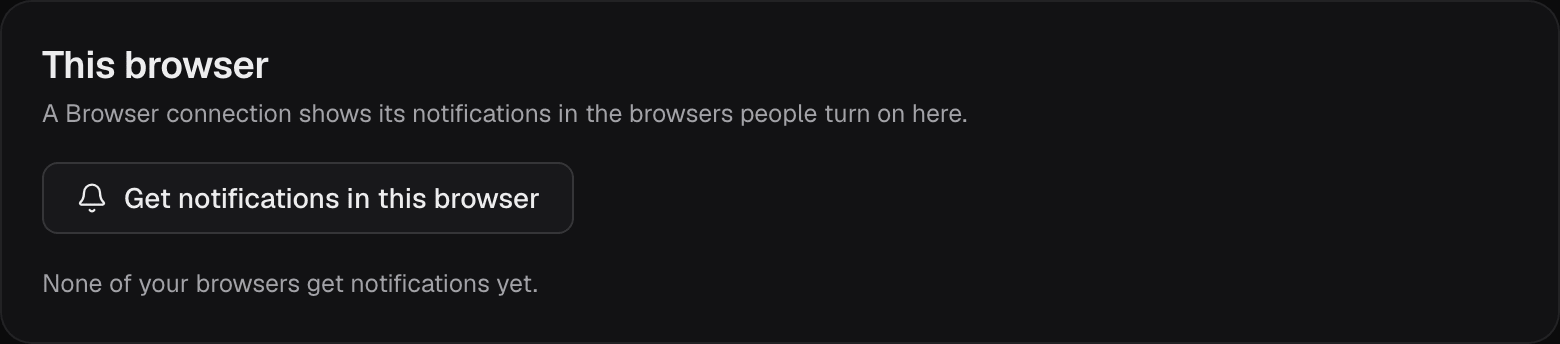
Your browsers lists the ones you've turned on, and you can stop each one. Each person manages only their own.
Browsers allow this only when the admin is open over HTTPS, or on the computer highsea runs on. If the page says notifications are blocked, allow them for highsea's address in the browser's settings. See Network and remote access for HTTPS.
The server's mail
An Email connection can also send the server's own mail: invites and password resets, to each person's own address. Turn on Send the server's mail in the connection's dialog, or the Server's mail switch in its row. Only one connection sends it; turning it on for one turns it off for the others.
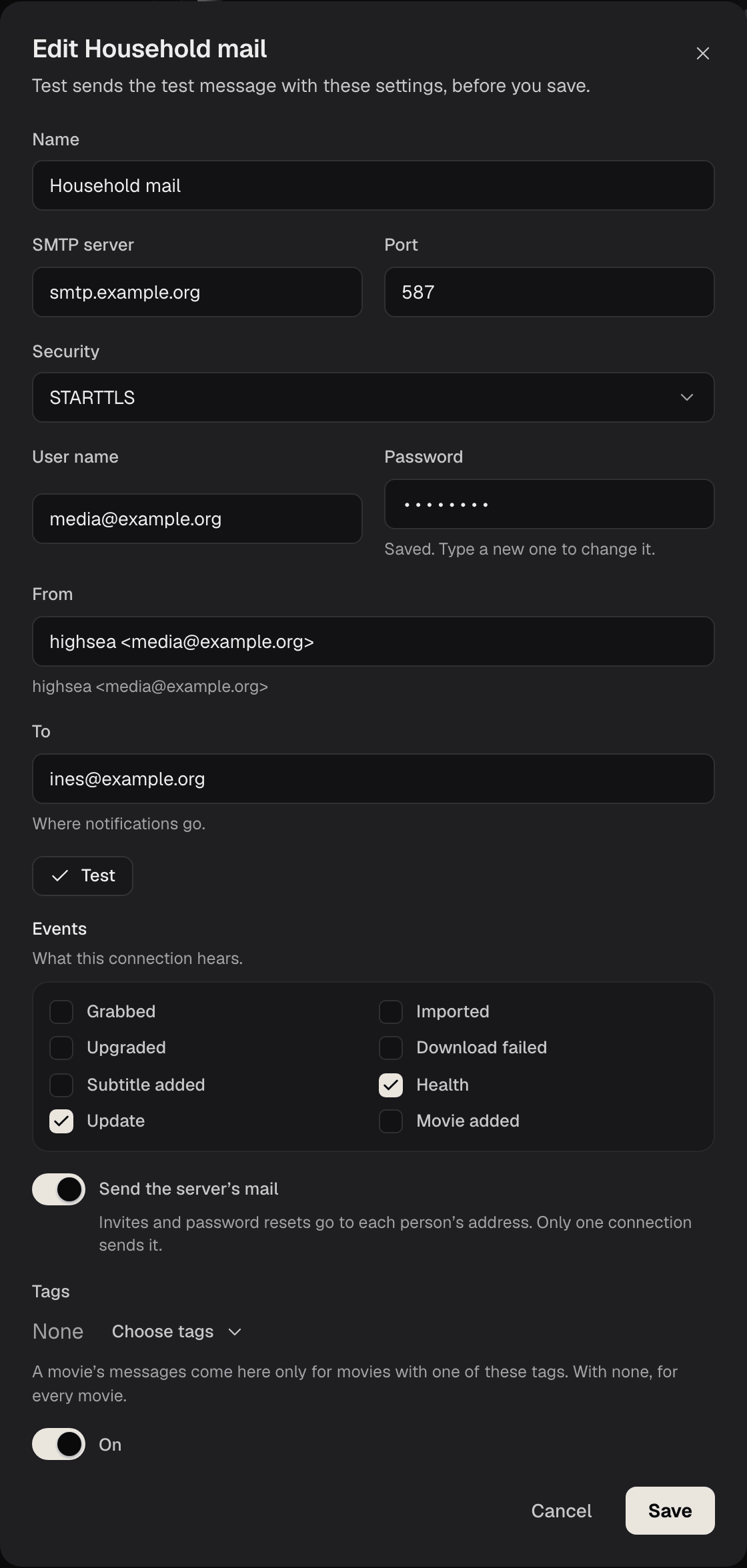

Without one, invites and resets still work: Settings › Users and devices (People) shows each link to copy and send yourself. With one, the link is shown and emailed. Set the External URL in Network and remote access so links in emails reach the server from anywhere.