Your account
Change your own password, and protect your sign-in with two-step verification and passkeys.
Written for highsea 0.1.0.
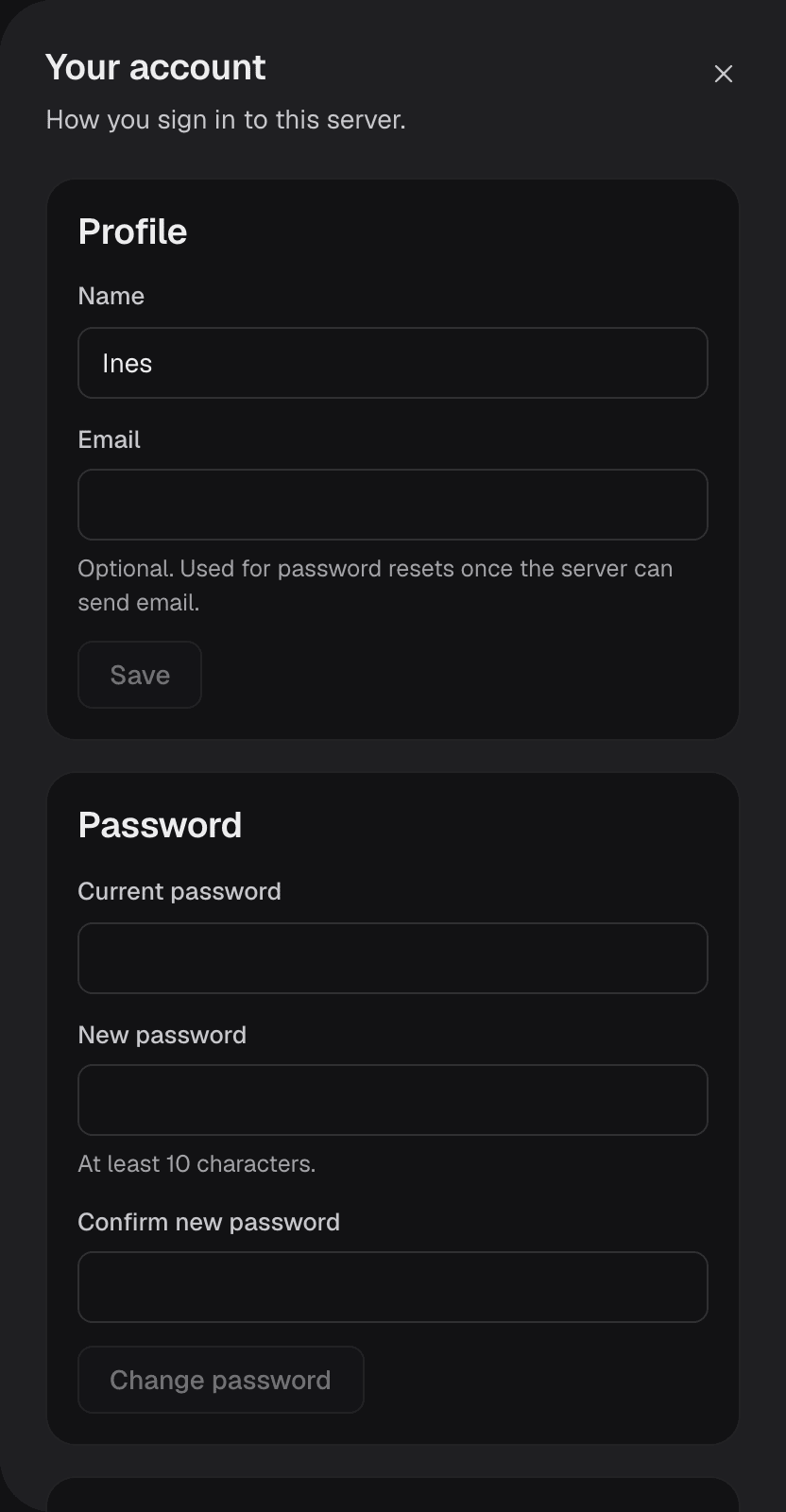
Everyone who opens the admin has Your account, at the bottom of the sidebar. It holds your name and email, your password, two-step verification and passkeys.
Your password
To change your password, open Your account, enter your Current password and the new one, and choose Change password. Your other browsers are signed out.
If you've forgotten it, ask the Owner for a reset link. The Owner's own password can't be reset by anyone else.
Two-step verification
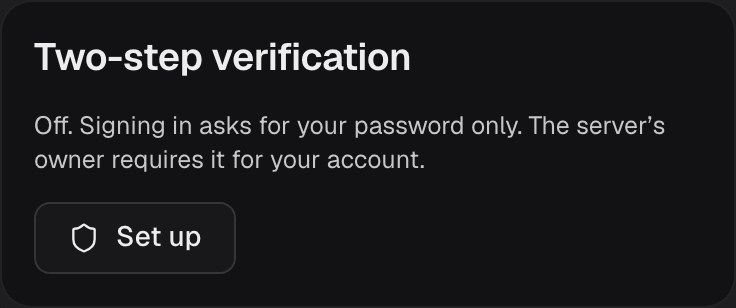
Two-step verification asks for a 6-digit code from an authenticator app after your password. It's only asked for in the admin; apps never ask for it.
To turn it on for your account:
- Open Your account and choose Set up under Two-step verification.
- Enter your password.
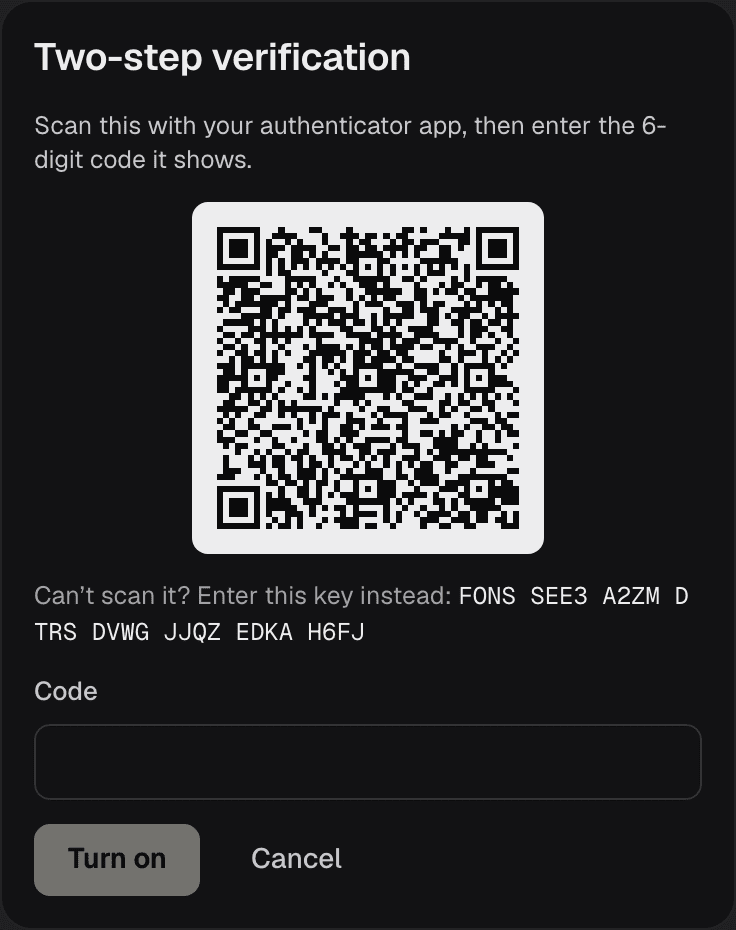
- Scan the QR code with your authenticator app, or enter the key shown below it.
- Enter the code the app shows and choose Turn on.
- Save the 10 recovery codes. Each signs you in once if you lose your authenticator, and they show only now.
Your account shows how many recovery codes you have left. New recovery codes replaces them all. At sign-in, Use a recovery code takes one instead of a code from the app.
When someone has lost both their authenticator and their recovery codes, the Owner can choose Turn off two-step from the ⋯ menu beside them in Settings › Users and devices. Make sure it's really them asking.
Passkeys
A passkey signs you in with your fingerprint, face or device PIN, with no password to type. In Your account, choose Add a passkey and follow your browser. Each one shows whether it's Synced across your devices or kept On one device, and can be renamed or removed.
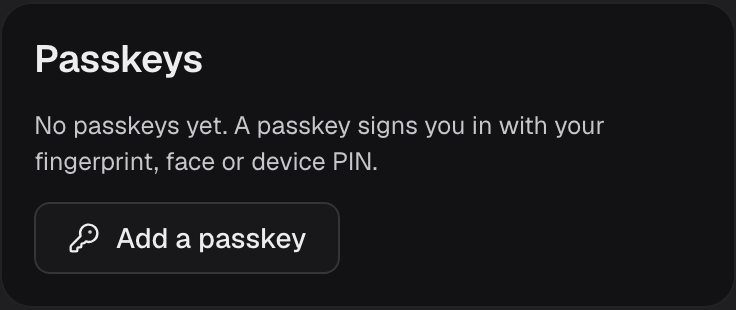
Passkeys work only when the admin is opened at its HTTPS address or at localhost. Settings › Network and remote access covers HTTPS. At sign-in, choose Sign in with a passkey.