A VPN container
Join highsea to a gluetun container's network, for providers that only offer OpenVPN or if you already run gluetun.
Written for highsea 0.1.0.
highsea joins the network of a gluetun container, whose only route out is the tunnel. gluetun makes the tunnel and supports many providers, including those that only offer OpenVPN; highsea reads gluetun's status and forwarded port from its control server.
Set it up
-
Make an API key for gluetun's control server:
docker run --rm qmcgaw/gluetun genkey -
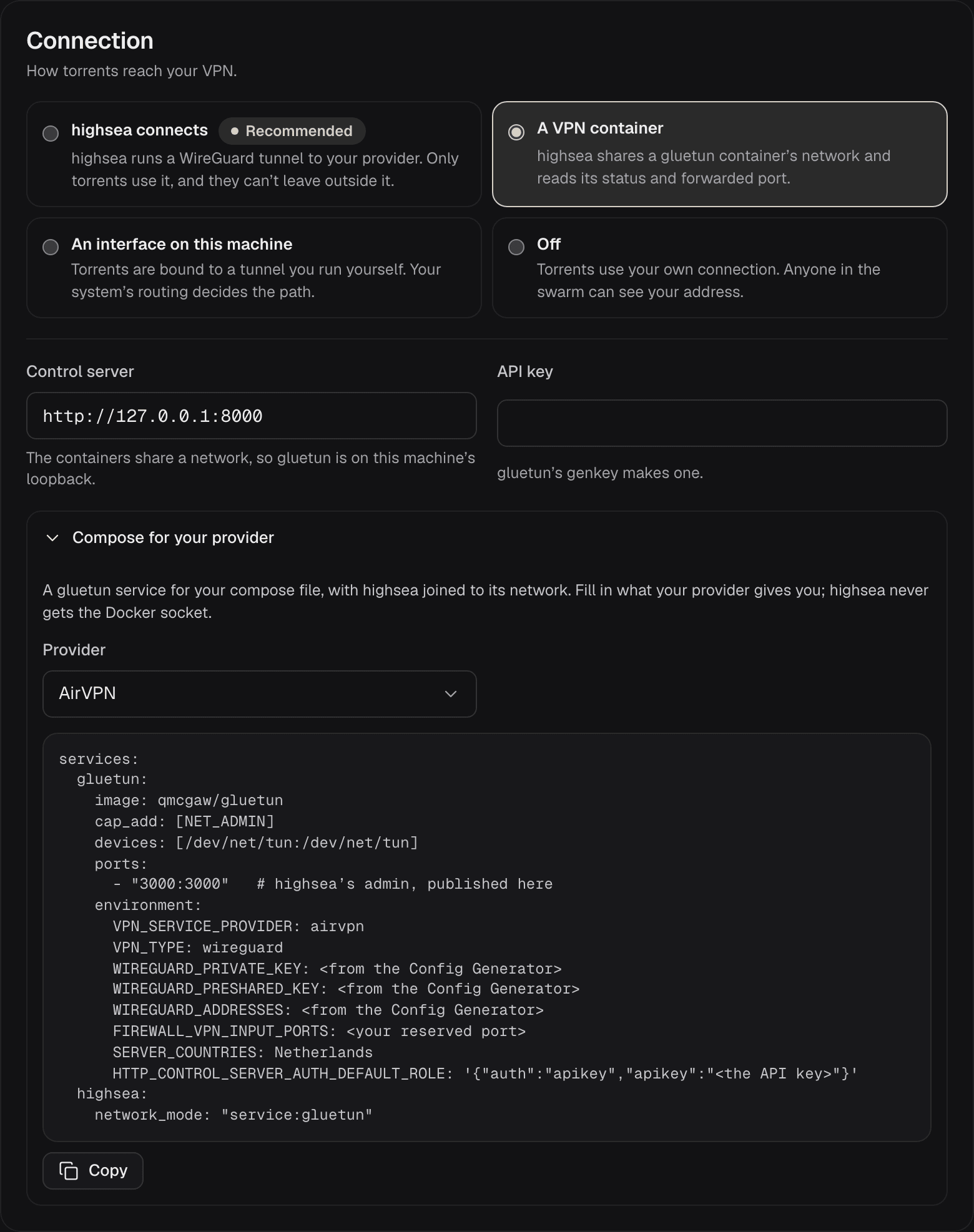
Add a gluetun service to your compose file and join highsea to its network with
network_mode: "service:gluetun". highsea's ports move to the gluetun service, since highsea no longer has a network of its own.compose.gluetun.yamlat the root of highsea's repository is a complete example for Proton VPN.For other providers, open Compose for your provider on the VPN page, pick your provider, and Copy the block it writes. Fill in what your provider gives you, and put your API key in
HTTP_CONTROL_SERVER_AUTH_DEFAULT_ROLE. gluetun's wiki has a page for each provider with the settings it takes. highsea never gets access to Docker itself, so you run this step. -
Start both, then in Settings › VPN choose A VPN container.
-
Leave Control server at
http://127.0.0.1:8000. The two containers share a network, so gluetun is on highsea's own loopback address. -
Enter the API key and save. highsea asks gluetun before it saves, and says so if gluetun refuses the key or can't be reached.
Port forwarding
For port forwarding through gluetun, turn it on in gluetun's settings (VPN_PORT_FORWARDING: "on" for providers gluetun supports it with) and keep Use the forwarded port on in highsea. highsea then uses the port gluetun reports. See Port forwarding.
Apps on your network
Apps can't find the server on their own in this setup, since discovery needs host networking or highsea's own published ports. Give them the server's address instead. See Discovery.