Health
What System › Health lists, and what to do about each message, by where it comes from.
Written for highsea 0.1.0.
Health lists what needs your attention, each with its level (Notice, Warning or Error), where it comes from, since when, and a message. The tab's count is the number of warnings and errors. The checks run on their own, and the list updates as things change. When there's nothing, it says "Everything's healthy".
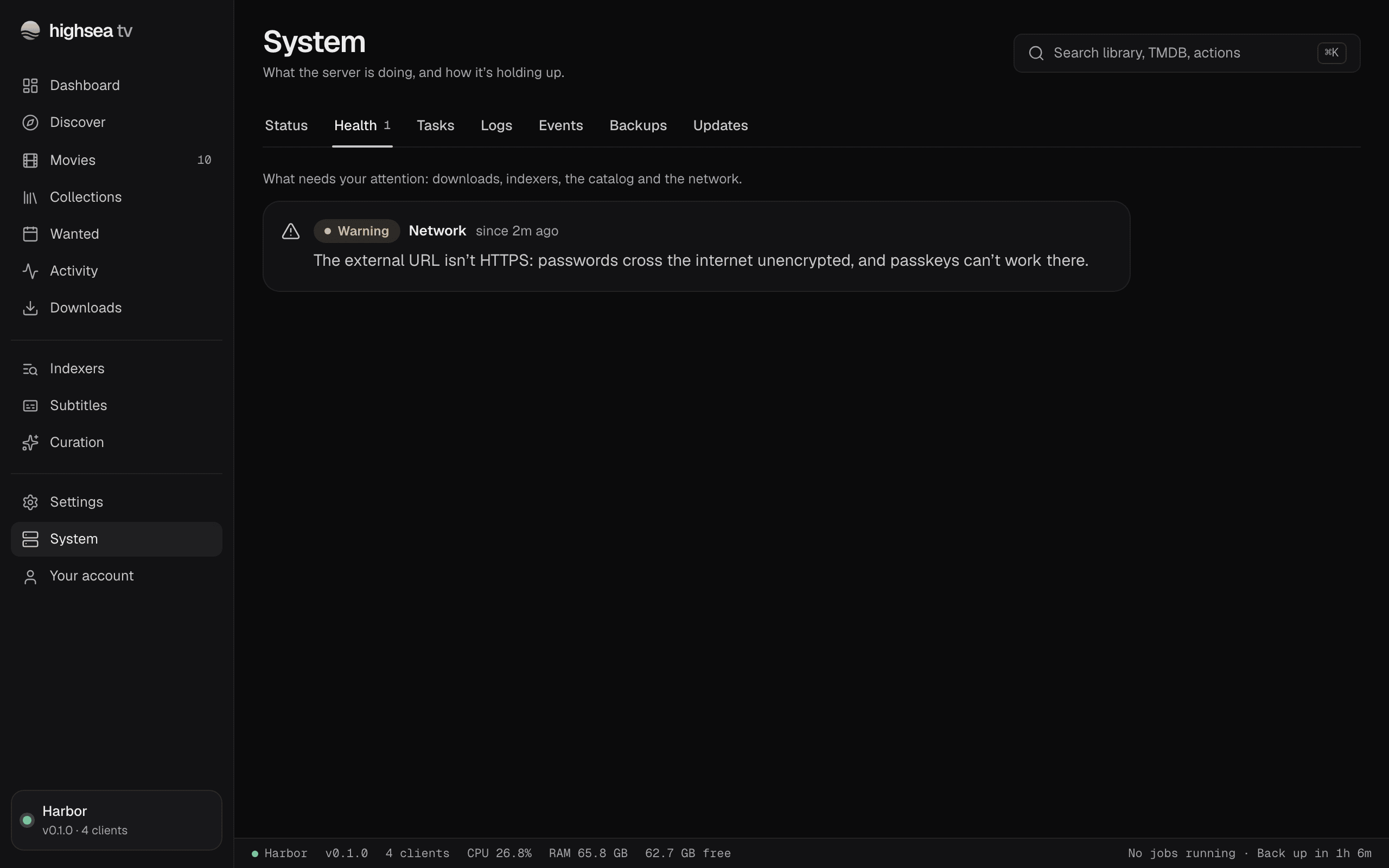
What each message means, and what to do, by source:
Indexers
- No indexers are enabled, so searches find nothing. Add one in Indexers.
- … has been failing. The indexer keeps erroring; the message gives its last error. Check it in Indexers, or turn it off.
- … needs a setting its new definition asks for. The catalog changed the indexer. Open it in Indexers and fill in the new setting.
- …'s definition is gone from the catalog, so it can't search. Remove it, or replace it with another indexer.
Catalog
- A failed catalog check, with its reason. highsea keeps the catalog it has. Try Check now under Status › About later.
- The local definition … doesn't validate, so it's skipped. A definition file you added has a mistake. The log says what.
Downloads
- The torrent client can't accept connections: … Usually the torrent port is taken or blocked. The Owner can check the Listening port in Downloads; check your firewall too.
- … couldn't be imported: … A finished download is blocked from import; the reason says why. Look at it in Activity.
- The IP blocklist couldn't be updated: … The blocklist's address may be wrong or unreachable. The Owner can check it in Downloads; highsea tries again each day.
VPN
- The VPN is down. Torrents are stopped until it's back. Torrents resume on their own when the tunnel returns.
- The VPN couldn't connect: … Check your provider's settings in VPN.
- VPN: … Open Settings › VPN to see why. One of the VPN's checks failed; the VPN page shows which.
- VPN: … didn't forward a port. Downloads still work, but fewer peers can reach you.
Network
- The certificate in … can't be used: … highsea's built-in HTTPS can't read the certificate or key in
/config/tls. Replace them with a full chain and its key. See Network. - Discovery couldn't listen on UDP … Something else is using the port apps use to find the server at home. Apps can still connect by address.
- The external URL isn't HTTPS. Passwords cross the internet unencrypted, and passkeys can't work. Set an
https://address in Network.
Subtitles
- … refused the password or … refused the key. Enter the provider's account again in Subtitles.
- … has no downloads left today. A notice. The provider is skipped until the time shown.
- ffmpeg isn't installed, so subtitles can't be synced to the audio. The official image includes FFmpeg. On your own install, install it, or set
HIGHSEA_FFMPEGto its path.
Import
- unar isn't installed, so downloads that come as archives can't be imported. The official image includes it. Otherwise install unar, or set
HIGHSEA_UNARto its path. - Imports into … will be copied, not hardlinked, followed by the reason. A warning, from a check highsea makes once it has started: it makes a hardlink from the downloads folder into each root folder, and removes it. The two reasons, and what to do, are the same as for the next two messages.
- Imports into … are copied, not hardlinked, because the downloads folder is on another disk. A warning. Each film takes its space twice while it seeds. Put downloads and movies under one
/datafolder on one disk, and give the container that one folder, as Recommended setup shows. The warning clears after the next import that hardlinks, or a restart. - Imports into … are copied, not hardlinked, because the disk doesn't support hardlinks. The same, on a filesystem without hardlinks. Move the library to one that has them, or turn off Use hardlinks in Importing if copies are what you want.
Playback
- This computer has an NVIDIA GPU, but the container doesn't. A notice. highsea sees an NVIDIA card on the computer, but NVIDIA's runtime didn't give it to the container. Install NVIDIA's container toolkit on the host and make it Docker's default runtime, as Hardware acceleration shows, then restart highsea.
Library
- The … folder … isn't there. An error. A root folder or the downloads folder is missing, usually a drive or share that isn't mounted, or a volume left out of the container. Mount it where the container expects it, or, for a root folder, change its path in Root folders.
- highsea can't write to the … folder … An error. The folder is read-only to highsea: a read-only mount, or a folder owned by another user than the one highsea runs as. highsea runs as whoever owns the data folder, unless
PUIDandPGIDchoose another; see Install with Docker. - The disk that holds … has only … free. An error, under 1 GB. Downloads and imports stop when the disk is full; free some space.
- The disk that holds … is …% full. A warning, when less than a tenth of the disk is free and that is under 100 GB. Each disk is listed once.
- … isn't watched for changes. A notice. highsea can't watch that folder for files you add or remove, so the library scan finds changes every 12 hours instead.
Connections
- Messages to … aren't arriving: … or A message to … was dropped after a day of trying: … A notification connection is failing. Check it in Notifications.
Backups
- The restore from … didn't work, so the server went back to the database it had. Nothing was lost; the message says why the restore failed. See Restore and move.
Database
- An error from the source database means highsea couldn't read its own database. Check that the disk holding the config folder is mounted, writable and not full, then restart the container.